Help

RunZone help, kept current.

Guidance for RunZone 0.97.1. Start workouts on iPhone or Apple Watch, set up goals, understand Fitness and History, share routes, and find support controls.

Quick paths

Find the right guide.

Start with the topic closest to the screen or decision in front of you.

Workout setup

Start tracking from Watch or iPhone.

Free can record outdoor Run on iPhone. Premium adds Walking and Hiking on iPhone and every new Apple Watch workout start, including iPhone-to-Watch, the Watch-face complication, the Apple Watch Ultra Action Button, Siri, and Shortcuts.

  1. For Premium iPhone-to-Watch launch, choose the workout mode, goals, and Track with Watch in the iPhone Workout tab.
  2. Hold to Start on iPhone. RunZone opens the Watch app with the selected setup ready; review it, then confirm the workout on Apple Watch.
  3. For a Premium complication start, add the RunZone complication to a supported Watch face, tap it to open RunZone, then review the setup and confirm on Apple Watch.
  4. For a Premium Action Button start on Apple Watch Ultra, open Settings > Action Button > Workout, choose RunZone and a workout mode, then press the orange Action Button and confirm on Watch. Press it again during a workout to pause or resume.
  5. Premium can also start directly in RunZone on Apple Watch, or through Siri and the Start Workout shortcut.
  6. The five Watch modes are Run, Indoor Run, Mixed Cardio, Walking, and Hiking.
  7. On iPhone, choose Free Run or Premium Walking or Hiking and Track with iPhone when you want the phone to record directly.
  8. Press and hold the start control until the ring completes.
  9. While a workout is active, use the iPhone app or Live Activity controls on the Lock Screen and Dynamic Island to review status and control the owning device.
  10. During an outdoor Apple Watch workout, swipe vertically from the main metrics to the Route page. Tap the map to inspect the route with pan and zoom, then close it to return to the workout pages.
  11. During a Premium Hiking workout on Apple Watch, the Elevation page follows Route and shows current altitude, low and high elevation, ascent, and descent.

Start with Siri or Shortcuts

Activate Siri and include RunZone in the command. On Apple Watch, Siri starts require Premium. On iPhone with iOS 27 or later, Siri can start Free Run on iPhone; Walking, Hiking, and all Watch starts require Premium. An eligible available Apple Watch is preferred for iPhone Siri starts. Watch starts open the normal setup and still need confirmation on Apple Watch. Starts use the selected workout type’s saved setup.

  1. Say “Start a Run with RunZone” for an outdoor run.
  2. Say “Start a Walk with RunZone” or “Start a Hike with RunZone” for Walking or Hiking.
  3. On iPhone, say “Start an Indoor Run with RunZone” or “Start Mixed Cardio with RunZone”. Both modes require Apple Watch recording; on Watch, you can select them in the Start Workout shortcut.
  4. In Shortcuts, choose RunZone’s Start Workout action and select the workout mode. For goal commands, see Use goals and guidance.

Control an active workout with Siri on iPhone (iOS 27 or later)

These commands act on the current iPhone- or Apple Watch-recorded workout. Apple Watch must be reachable for control commands sent from iPhone. The Watch Siri shortcuts above provide starts and goals; the following controls belong to the iPhone Siri surface.

  1. Say “Pause my workout with RunZone” to pause recording.
  2. Say “Resume my workout with RunZone” to continue a paused workout.
  3. Say “What is my workout status with RunZone” to hear the workout type, recording device, and current state.
  4. Say “Open my workout with RunZone” to open the active workout in RunZone on iPhone.
  5. Say “Finish my workout with RunZone”, then confirm Siri’s request to finish and save it.

If a command is unavailable, follow Siri’s explanation. Open RunZone to check Apple Health and route permissions, Premium access, or Watch connectivity. Starting another workout or changing its next-workout goal is unavailable while a workout is already active.
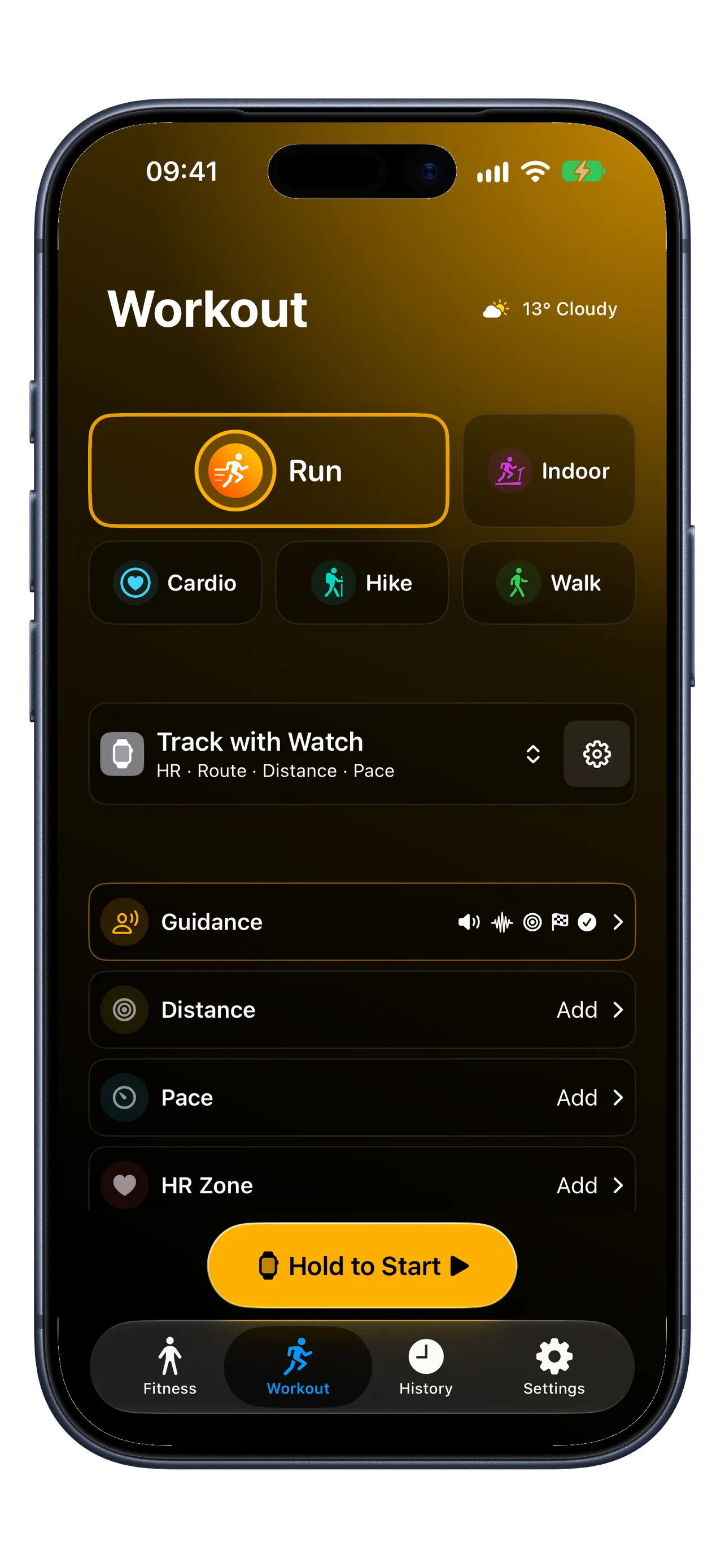
RunZone iPhone Workout tab showing workout type selection, tracking device selection, and workout goals
Goals and guidance

Match goals and guidance to each workout type.

Workout Setup and Guidance require Premium. RunZone keeps Guidance choices separate for Run, Indoor Run, Walking, Hiking, and Mixed Cardio so each workout type can use only the feedback that fits it.

  1. Use target HR zone when the workout should stay inside a training zone.
  2. Use max HR zone when you only want a warning above the selected zone.
  3. Use distance or pace goals when the session is built around a target distance or pace.
  4. For Walking or Hiking, use Carried Load when pack weight should contribute to training context.
  5. Open Guidance from the selected workout setup on iPhone or the Guidance row on Apple Watch. Device-wide voice, speech rate, and volume controls are in Audio; Guidance choices belong to each workout type.
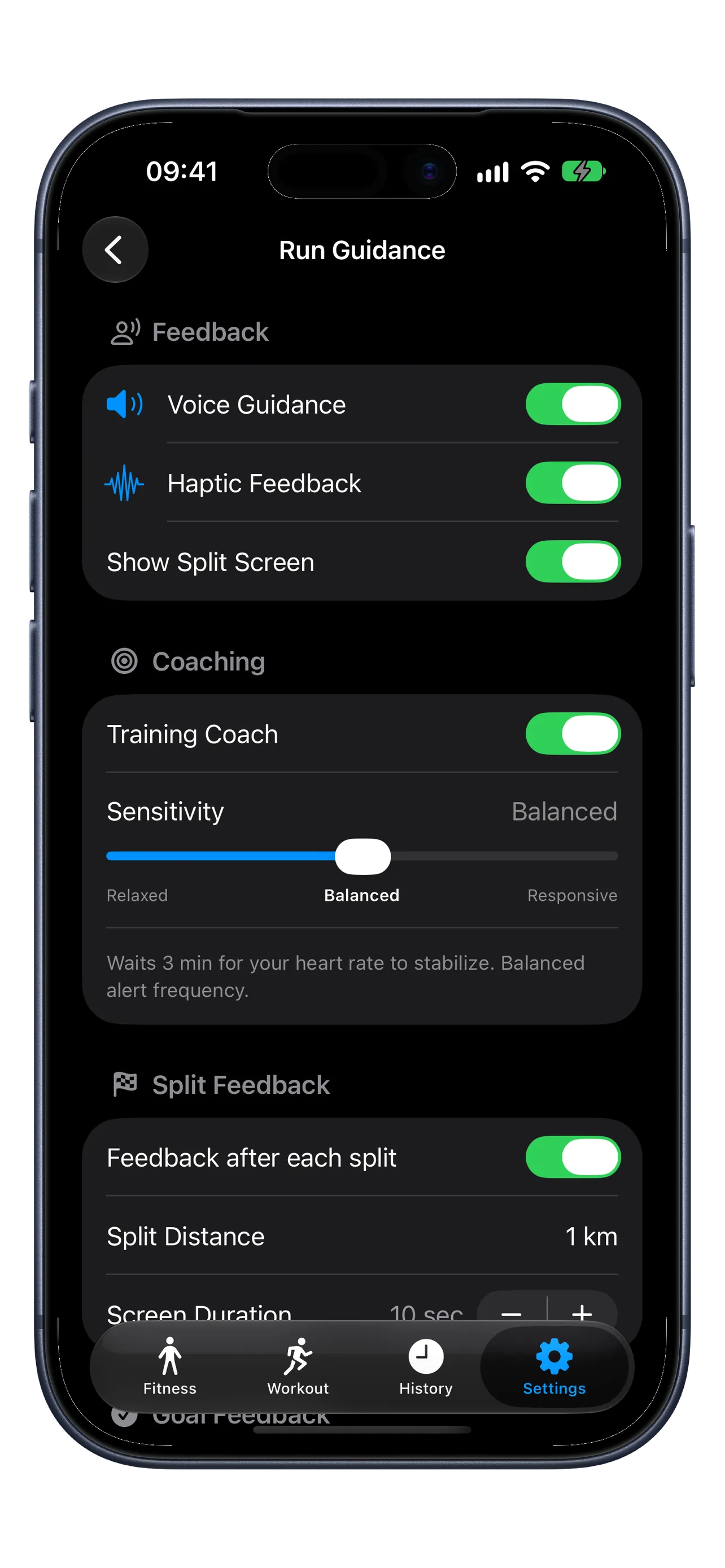
  6. Enable Voice Guidance and Haptic Feedback together or independently. Turning both off silences split, goal, and coaching feedback.
  7. For distance-tracking workouts, enable Split Feedback to receive each split through the active voice or haptic channels.
  8. Use Show Split Screen separately when you also want timed on-screen split feedback.
  9. Under Spoken Split Details, choose pace where supported, elapsed time, heart rate, and HR zone. Use Preview Announcement to hear the current selection before the workout.
  10. Enable Goal Feedback when you want configured goal progress and achievements announced and shown through the active Guidance channels.
  11. During an active workout, open Guidance on iPhone or pause on Watch and open Settings. Changes apply to that workout type immediately and remain selected for its next workout.
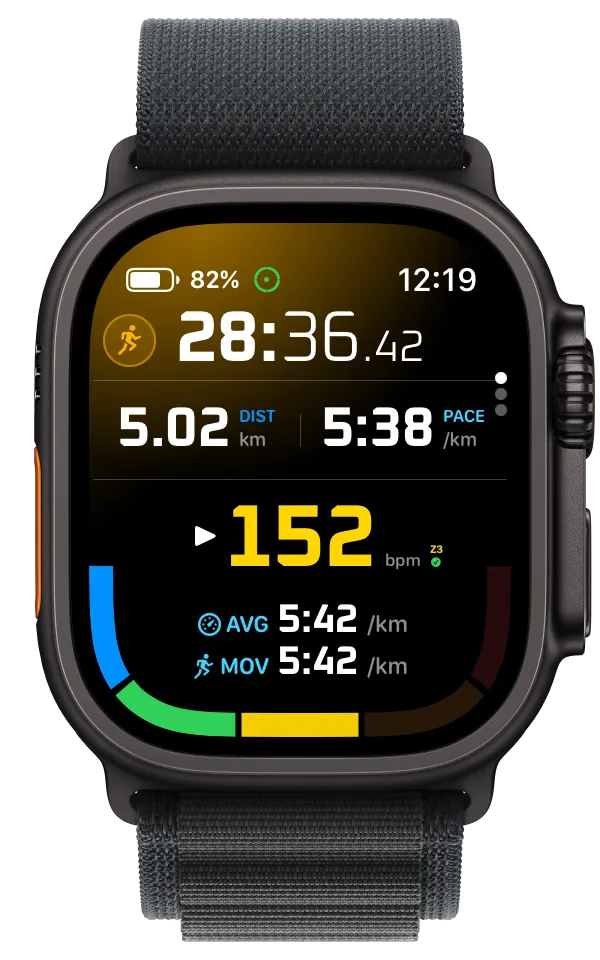
  12. During an Apple Watch workout, the top-left status shows the current Watch battery level opposite the system clock.

Set a workout goal with Siri (Premium)

Goal commands are available on Apple Watch and on iPhone with iOS 27 or later. Say the workout type in the command, then answer Siri’s questions about the goal and any missing values. Use these registered phrases rather than relying on Siri to understand a numeric goal in one sentence.

  1. Say “Set RunZone Walking goal” to save a goal for your next Walking workout without starting it. Replace Walking with Run, Indoor Run, Hiking, or Mixed Cardio as appropriate.
  2. Say “Start RunZone Walking with goal” to set the goal and enter the normal workout start flow. Review and confirm on Apple Watch when it is the recording device.
  3. Choose Distance and provide a value with its unit, for example 5 kilometers. Choose Pace and provide a time plus whether it is per kilometer or per mile, for example 6 minutes per kilometer. Distance and pace goals are supported for Run, Indoor Run, Walking, and Hiking; Mixed Cardio supports heart-rate goals instead.
  4. Choose Target Heart Rate Zone to aim for a zone, or Maximum Heart Rate Zone to limit intensity, then give a zone from 1 to 5. Heart-rate goals require Apple Watch recording.
  5. In Shortcuts, use Set Workout Goal or Start Workout With Goal to configure the parameters directly. Minutes in Target Zone is an optional Shortcuts parameter for a target-zone goal.

Saving a goal changes only that goal for the selected workout type and preserves its other goals and other workout types. Finish the active workout before setting a goal for the next one. Invalid values, unsupported goals, or missing Premium access are rejected before settings change.

RunZone Apple Watch active workout screen showing heart-rate zone guidance, pace, distance, and heart rate
Fitness overview

Read the daily training context before deciding what to do next.

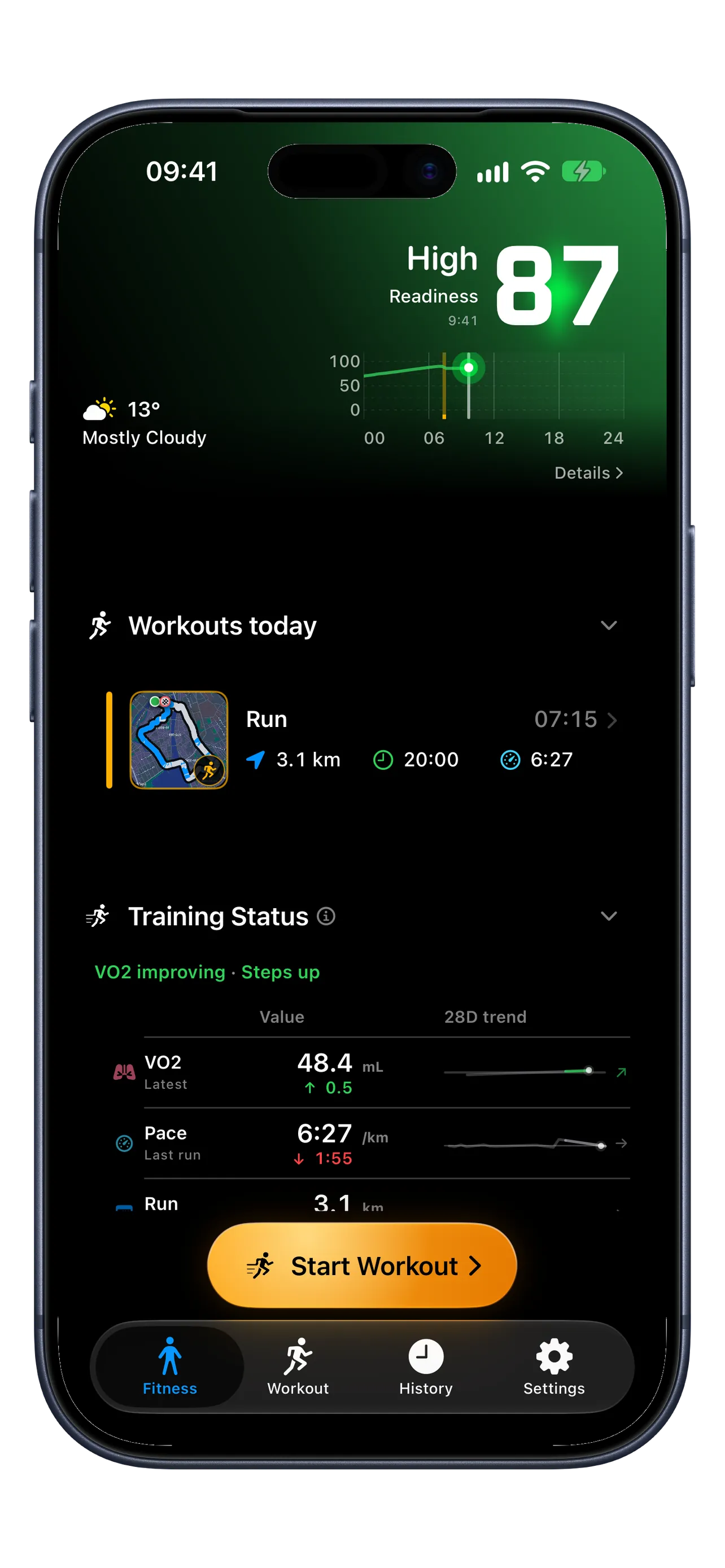
Fitness combines Workouts today with a current Workout Readiness summary available on Free. The summary shows the current score, classification, and a short explanation when enough Apple Health data is available. Premium adds Readiness timelines and detailed analysis, Training Status, Body Signals, Activity Trends, and Activity Overview.

  1. Start with workout readiness. It is a training signal, not a medical score.
  2. Use Training Status to read the latest value, compare it with the prior comparable value, and review the trend for that metric.
  3. Use Body Signals for overnight HRV, resting heart rate, sleep, blood oxygen, respiratory rate, and temperature context.
  4. HRV shows the median from the latest completed main sleep interval with enough Apple Health measurements. If current overnight evidence is incomplete, RunZone keeps the previous qualified value visible and marks it stale.
  5. HRV vs prior compares the preceding qualified night, while the 7-day trend gives each qualified night equal weight. A configured sleep window may group existing measurements when Apple Health sleep timing is unavailable, but it never creates sleep or HRV data. Readiness timelines distinguish estimated sleep timing from recorded sleep; an estimate does not confirm that you slept. While current sleep is unavailable, Sleep pending keeps the best-known readiness visible. Missing sleep is not treated as zero sleep. Check Apple Health when sleep is unconfirmed.
  6. Use Activity Trends and Activity Overview for broader volume and consistency context.
  7. Pull down on Fitness when you want to refresh the current values.
RunZone iPhone Fitness tab showing Workout Readiness, weather, Workouts today, and Training Status
Workout history

Review your workout, then share the route or a summary.

Workout-type and date filters are available in History for every tier. Free keeps the three newest eligible workouts readable in History and Workouts today; an active workout counts as the newest Today entry. Premium unlocks the full readable list and advanced workout analysis.

  1. Use the workout-type and date filters to narrow the history list.
  2. Tap a workout tile from Fitness or History to open the workout details.
  3. Open the basic route map for any readable workout with GPS data, including on Free. The full-screen map uses a single-color route; HR-zone coloring and advanced route analysis require Premium.
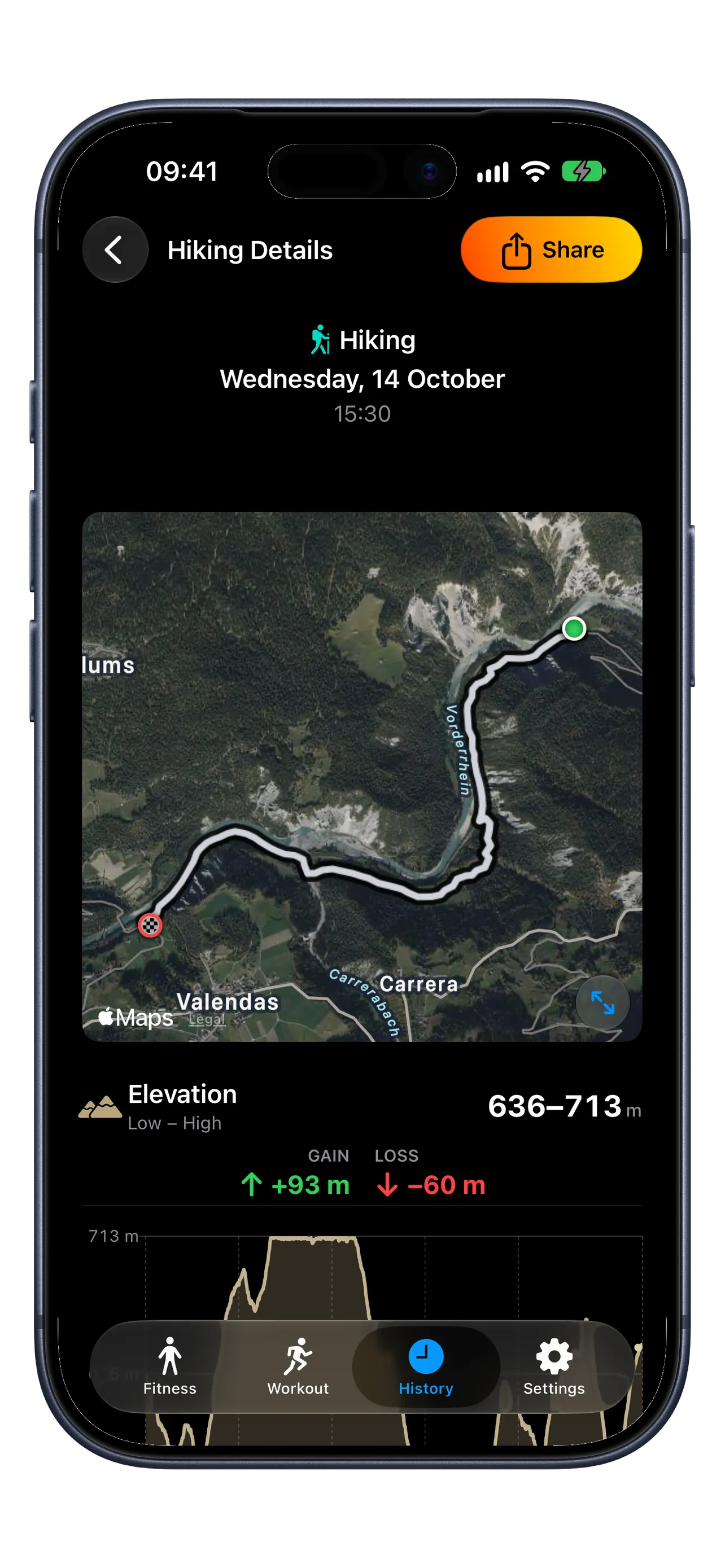
  4. With Premium, review splits, heart-rate zones, pace, elevation, effort, and weather when available. Hiking details include the lowest and highest elevation together with total ascent and descent.
  5. For a readable Run, Walking, or Hiking workout, open the share menu and choose Share Workout Image, Smoothed GPX, or Original GPX. These actions do not require Premium.
  6. Share Workout Image creates a summary image you can send or save to Photos. The image includes a limited workout summary and route.
  7. Choose Smoothed GPX for a cleaned-up route or Original GPX for the valid route points stored in Apple Health. If no GPS track is available, RunZone tells you instead of exporting an empty route.
  8. RunZone prepares the file on your device and does not upload it to a RunZone server.
RunZone iPhone Premium Hiking workout detail showing the low and high elevation range with ascent and descent
Crash reports and support

Send diagnostic logs from RunZone.

Crash reports and diagnostic logs stay on your device until you choose to share them. Production and external TestFlight builds always sanitize the support package.

  1. After a crash, reopen RunZone so iOS can make the report available to the app.
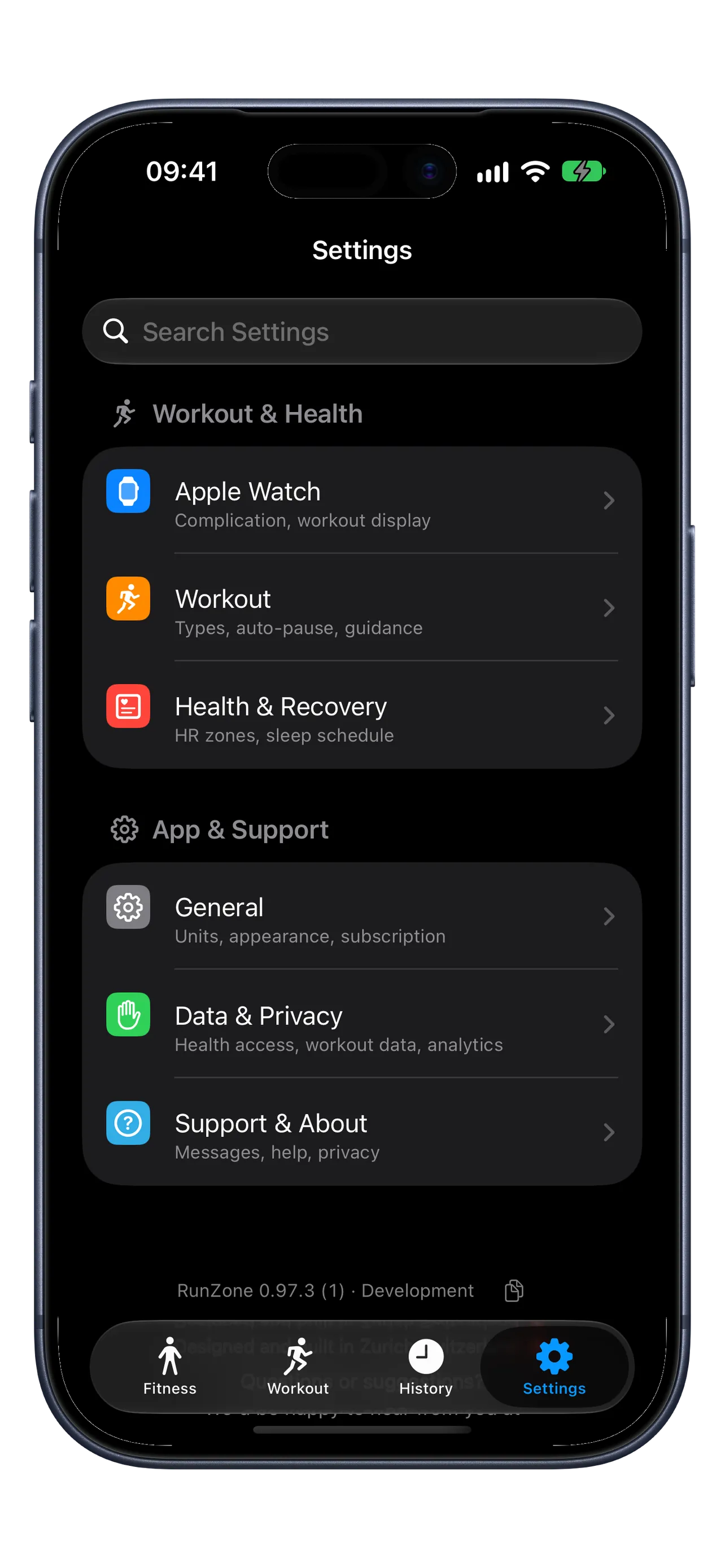
  2. Open Settings > Support & About > Diagnostic Logs.
  3. Under iOS Crash Reports, select the newest report that matches when the crash happened.
  4. The support package removes sensitive values from the selected logs. Nothing is sent automatically.
  5. Tap Email Support Package. RunZone prepares the selected logs, then opens the native mail composer with one ZIP archive attached and support@runzone.app prefilled.
  6. If mail is unavailable, tap Share Support Package to open the unrestricted system share sheet and choose how to send the ZIP archive.
  7. In the message, describe what you were doing, the approximate crash time, and the steps that caused the issue.
  8. If no Crash Report is available yet, send the newest iOS App Session log with the crash time and check Crash Reports again later.
RunZone iPhone Settings showing workout and health settings, General, and Data and Privacy
Still stuck?

Use FAQ for common answers, or send us the details.

A short description plus a diagnostic support package is usually enough to investigate workout, Watch sync, or subscription issues.

Run in the Zone.

Make your next workout count.

Start with outdoor running on iPhone. Add Premium when you want more.